NAVIGA-Rep Budgets By Format
Type: Other
Rep Budgets by Format
Rep Budgets by Format
Bundle (TGZ): NAVIGA-Rep Budgets By Format
Definition JSON: naviga-rep-budgets-by-format.json
Summary
The data is stored in the AD Internet Rep Format Budgets mapping in Informer. In Naviga Ad, you can set up these budgets here -> https://xxx.navigahub.com/EW/xxx/ad/rep_budgets_inet?t=FORMAT
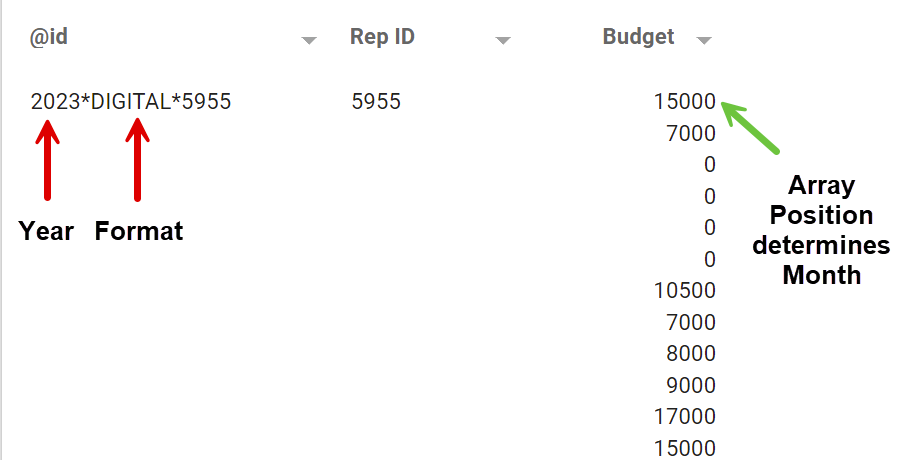
The data is stored WITHOUT an implicit date field. Instead the information for the Year is embedded in the ID field and the Month information is stored positionally in the Budget field.
We need to take the @id field and extract the Year and Format from it (See red arrows). The Rep ID is the last item of the ID, but we already have that as a separate field.
We will then infer the month based on the position of the budget amount in the array. We will do this in a Powerscript. Since arrays are zero based, we will need to add +1 to each element's position.
Infer Months Powerscript
// The budget amounts are stored in a MV field and they are in month order
// Index 0 = Jan, 1 = Feb, etc.  We add one to the index to get the correct month numbers
$record.month = $record.budget.map((el, index) => index + 1)
// String of the above to be used in joins if needed
$record.monthString = $record.month.map(el => el.toString().padStart(2, "0"))


// The Year and the Format is stored in the ID field
// We split that field and take what we need
$record.budgetYear = $record.id.split("*")[0]

$record.format = $record.id.split("*")[1]
Adding Budget data to another Dataset
Most likely you will want to join the budget data to another dataset or report so that you can compare the budget data to the actual revenue being earned.
To do this, you will first need to convert the Ad Hoc Budget report into a Dataset. This is easily done by:
- Run the Ad Hoc report
- From the Actions menu choose "Create Dataset"
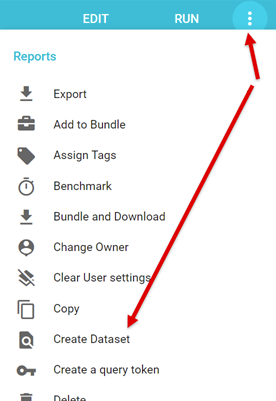
You can now join this dataset to another dataset, however, be aware that when you join the budget data to another dataset that has its revenue data at a different granularity, you will need to make sure to "fix" the budget data so that it is not duplicated to the target datasets granularity.
For example, our budget data is showing budgets by Month-Year-Rep-Format, but our Revenue data may be displayed down to the Line detail level. Which means our budget data will be duplicated for every line that a Month-Year-Rep-Format exists for.
To make sure we only see one budget amount per Month-Year-Rep-Format, we need to use the calculateAggregates Saved Function to get the budgets showing the way that is needed.
Here is an example that can be used if you add budgets to a dataset getting data from AD Internet Orders. Step 1
Join your budget Dataset to your current report.
NOTE: If you are loading multiple years of budget data and transaction data, make sure to include the Year field in your join keys.
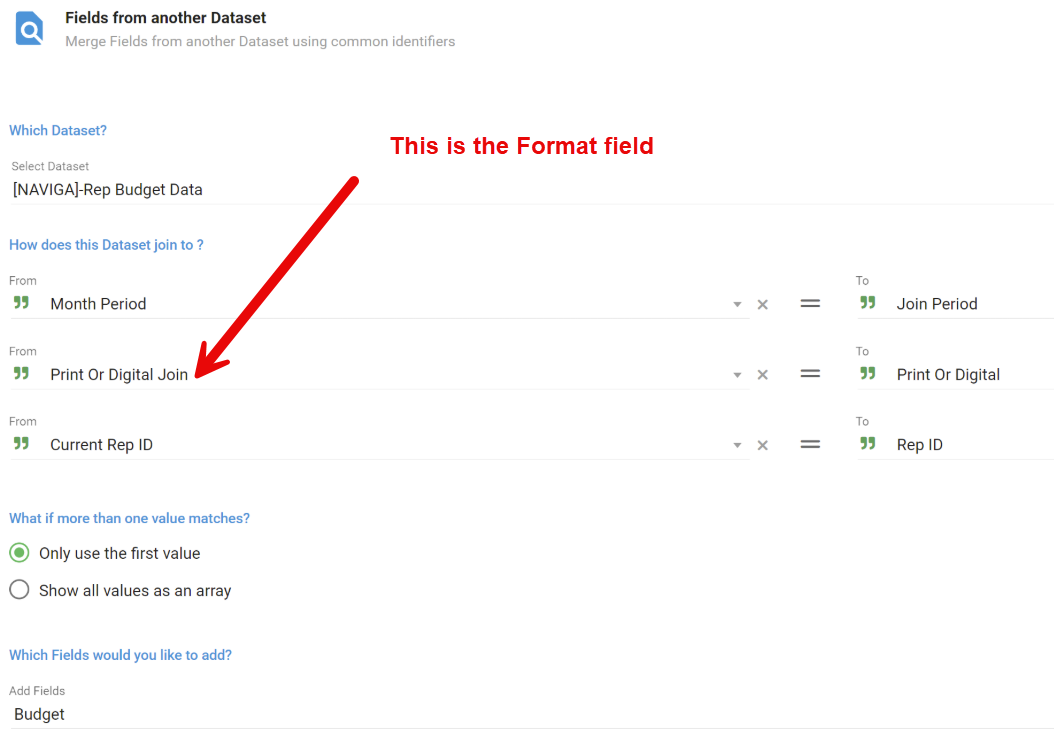
Step 2 This powerscript is going to make sure we have only one Budget value for our groupKey1 definition. This means that even if there are 100 row for the key (Rep, Format and Month) only ONE row will have the budget data on it.
NOTE: If you are loading multiple years of budget data and transaction data, make sure to include the Year field in your groupKey1
Aggregate Calculation Powerscript
// Based on PrintPubInd create new field with "Print" or "Digital"
$record.printOrDigitalJoin = $record['web_site_id_assoc_printPubInd'] === "Y" ? "PRINT" : "DIGITAL"
// Define your group keys on the $record object so that
// you can reuse them in the Post Aggregation function
$record.groupKey1 = `${$record['currentRepIds']}-${$record['printOrDigitalJoin']}-${$record['monthPeriod']}`;
groupKeys = [
  {
    name: "Key 1",
    groupKey: $record.groupKey1,
  }
];

groupAggr = [
  {
    name: "budget",
    initValue: 0,
    value: $record['budget'],
    type: "replace"
  },
];

// Calling the calculate aggregates in a Powerscript
naviga.calculateAggregates({ $local, groupKeys, groupAggr });
Step 3 ADD A Flush Flow Step
Step 4 This final step is moving the "budget" field created in our Aggregation step into an actual record field.
Post Aggr Powerscript.
// Get the group keys you defined in your Calc aggregations Powerscript
groupKey1 = $record.groupKey1
$record.budget = 0

// GROUP KEY 1
if (!$local[groupKey1].GroupSet) {
  $record.budget = $local[groupKey1].budget;
  $local[groupKey1].GroupSet = true; //Setting to true means we will not excute this code again during the load.
}
Description
Budget report for the Rep Budgets by Format -> https://xxx.navigahub.com/EW/xxx/ad/rep_budgets_inet?t=FORMAT Shows the budgets by rep, format, year and month
Fields
| Label | Alias | Type | Hidden | Description |
|---|---|---|---|---|
| ID | id | keyword_text | Budget Identifier Budget YearFormatRep ID | |
| Budget Year | budgetYear | keyword_text | ||
| Rep ID | repId | keyword_text | ||
| Rep Name | a_d_salesreps_assoc_repName | keyword_text | ||
| Month | month | double | ||
| Month String | monthString | keyword_text | ||
| Month Name | monthName | keyword_text | ||
| Budget | budget | double | ||
| Forecast2 | forecast2 | double | ||
| Forecast1 | forecast1 | double |